HSBC_IDS check list
-
Please read before connecting
This page is for the Pegasus Opera II or 3 pacakge using the Microsoft SQL Server Database Engine. This edition doesn't cover the Visual FoxPro configurations.
Connecting to your Pegasus Opera Company
-
How to connect to your Pegasus Opera Company
Please follow steps below to configure your Opera company to the HSBC_IDS application.
Click each step below for a pictorial view


Advanced Technical Information / Options
-
Automatic Extractions on Servers
Your HSBC_IDS application may be setup to retrieve data automatically at a predefined schedule, this functionality relies to be logged on at the scheduled time. Due to the nature of Servers, it may rarely be logged into. So if the HSBC_IDS application is installed on a Server, extractions may not always perform automatically. To enable this feature a task scheduler would have to be created.
To create a task scheduler please go to the installation path of HSBC_IDS, usually held in C:\HSBC_IDS_xxx\ Open the taskSchedule.bat file and follow the instructions.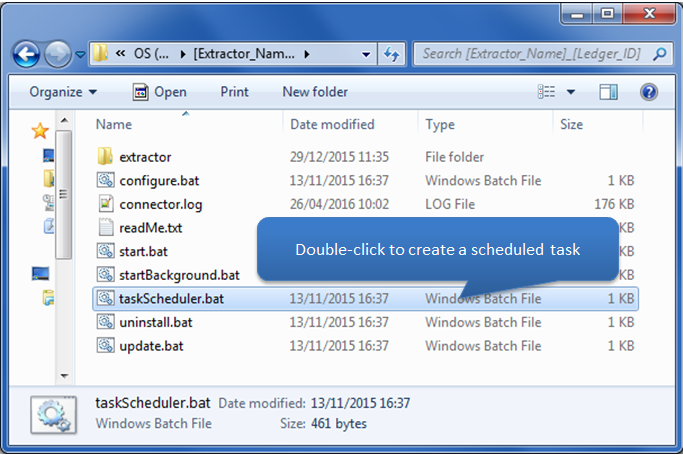
-
Creating dedicated MSSQL user
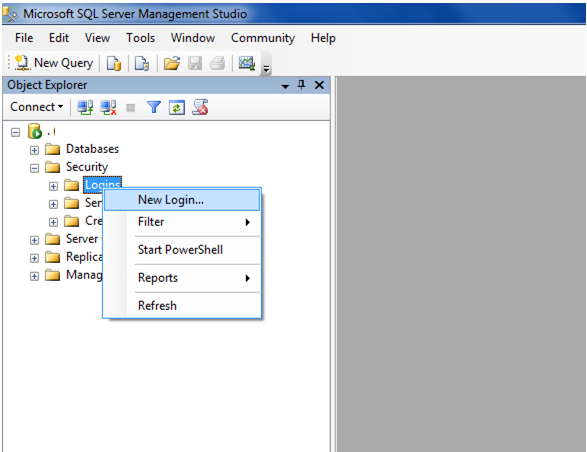
An MSSQL user can be created dedicated to the HSBC_IDS application. This user should be created and mapped to the desired database with db_readonly rights as a minimum requirement.
Click each step below for a pictorial view
Error Messages
-
Error Information
If after clicking the Test Connection button an error message appears it is most likely that one (or more) of the credentials entered are incorrect. Below are a few examples of the typical errors and how to handle them:
- Incorrect username/password:
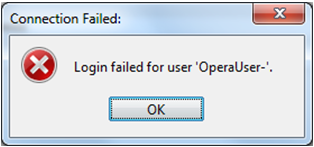
If this error appears, the SQL Server username or password is incorrect � remember the username and password required to Pegasus Opera is the SQL Server username and password not the username and password required to log into Pegasus Opera. - Incorrect Server/ Server not located:
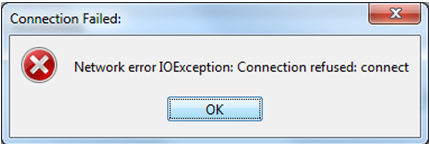
If this error appears the Server isn�t able to be located. This could be due to a number of reasons.
- The server might be turned off
- The server may not be on the same network as the same PC HSBC_IDS is running from
- The PC HSBC_IDS is running from may not have access to that server
- The server may have an instance that the database (that Opera is using) is located on.
- The server may be using a different TCP/IP
- There might be spelling error
- Incorrect Instance:
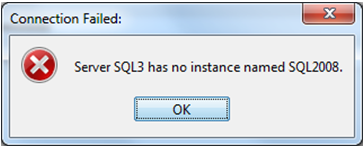
If the instance used is incorrect or not entered (only if one exists). Please double check Opera's Company Profiles Window - Step 2 above
- Unknown Server Hostname:
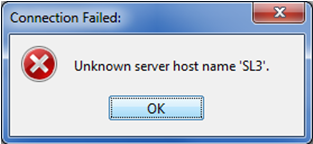
If the Server Name entered is incorrect please double check Opera's Company Profiles Window - Step 2 above.
- Cannot Open Database:
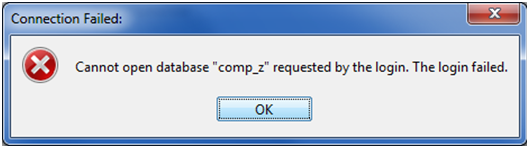
The SQL user entered must be mapped to the companys database. Please see the advanced section on how to give a user read only access in Microsoft SQL Server Management Studio.
- Incorrect username/password: